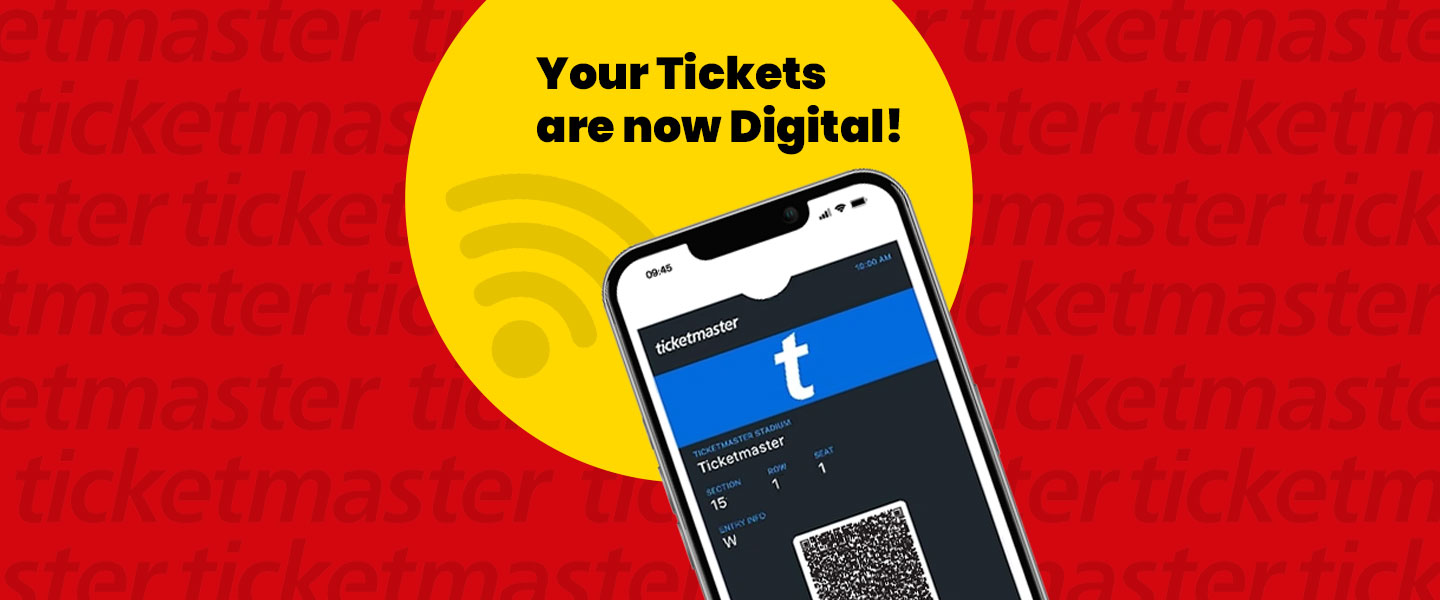
MOBILE TICKETING FAQ
How do I use my mobile tickets for event entry?
To use your mobile tickets for event entry, follow these steps:
- Open the Ticketmaster App.
- Sign into your Ticketmaster Account.
- Tap My Tickets/My Events and find your order.
- Tap View Tickets to access your tickets. We recommend adding your tickets to a mobile wallet so you always have them on hand, even without internet connection. Screenshots will not be accepted for entry.
- Present your ticket barcode to be scanned at entry.
How do I access mobile entry tickets if I lose internet access?
We recommend adding your tickets to a mobile wallet before attending your event to ensure you can access them at the venue without internet service.
Apple users can add tickets to Apple Wallet, and Android users can use Google Wallet.
How do I add tickets to Apple Wallet?
How do I use Google Wallet for event entry?
Why does the ticket in my mobile wallet say it is invalid?
Invalid tickets found in your mobile wallet have been transferred or cancelled and can no longer be used for entry.
Why do my tickets have a moving barcode?
Mobile tickets use a barcode that refreshes every 15 seconds to prevent fraud and counterfeit tickets.
What if I delete the Ticketmaster app?
Simply reinstall the app and sign back into your Ticketmaster account. Your tickets will still appear under My Tickets/My Events.
Can I access my tickets on multiple devices?
Yes. As long as you sign into the same Ticketmaster account, your tickets can be accessed on another phone or device.
How does ticket transfer work?
Ticket Transfer allows guests to send some or all of their tickets from one Ticketmaster account to another.
Once the transfer is accepted, the recipient receives a new barcode and the original barcode becomes invalid.
Ticket Transfer is designed for sending tickets to friends and family and is not used for ticket exchanges.
How do I accept transferred tickets?
- Tap the Sign In link in the text or email message.
- Sign in or create a Ticketmaster account.
- View your tickets under My Tickets.
How do I cancel a ticket transfer?
Only the sender can cancel a transfer if it has not yet been accepted.
- Sign into your Ticketmaster account.
- Find your order under My Tickets/My Events.
- Select Cancel Transfer.
- Confirm the cancellation. The ticket will return to your account.
Can I transfer a ticket to someone without a Ticketmaster account?
Yes. However, they will be prompted to create or sign into a Ticketmaster account in order to accept the transfer.
I am not able to attend the show. Can I send my tickets to someone else who does not have a Momentum card?
Yes. Tickets can be transferred to anyone with a Ticketmaster account.
Can someone enter before me if I transfer their ticket?
Yes. Once the ticket transfer is accepted, the recipient receives their own barcode and can enter the venue independently.
Do all guests attending with me need a Ticketmaster account?
No. Only the person accepting transferred tickets needs a Ticketmaster account. If you keep the tickets on your phone, guests can enter together.
What if I do not have a cell phone?
You can have your tickets sent to someone in your group with a smartphone who will be attending the event with you.
I received mobile tickets but my friend does not have a cell phone.
Your friend will need to enter the theatre with you. Their ticket will remain on your phone and will be scanned along with yours.
I do not have a cell phone but my spouse does. Can you send the tickets to them instead?
Yes. Tickets can be sent to any phone number or email address provided.
I do not have a smartphone. Can I receive a text ticket?
Depending on your device capabilities this may work. However, the recommended option is to send tickets to someone in your party with a smartphone.
If that is not possible, paper tickets may be issued later in the day, subject to availability and remaining inventory.
No one in my party has a smartphone. Can I still receive paper tickets?
Yes... however digital tickets are strongly recommended to ensure the best seating availability.
Please visit our Box Office and Usher staff to discuss options and alternate solutions.
I do not want to create a Ticketmaster account.
Tickets can be sent via a text directly to your phone if your device supports it. However, without a Ticketmaster account you will not be able to transfer tickets and there are limitations to when we are able to text tickets.
Digital tickets are strongly recommended.
Can I exchange my mobile ticket for a paper ticket?
No. Your phone serves as your ticket. Simply present your barcode for scanning.
Can I take a screenshot of my ticket for entry?
No. Screenshots will be flagged by scanners and will not be accepted.
Guests may be asked to open the original ticket or visit the Box Office for verification.
Can multiple tickets be scanned from the same phone?
Yes. If you are holding multiple tickets, simply present each barcode one after another for scanning.
Can I still enter if my phone screen is cracked?
Possibly. If the barcode can be scanned clearly, entry should not be an issue. If not, guests should visit the Avalon Box Office/OLGS Will-Call for assistance.
What if my ticket will not load or scan?
Try the following:
- Turn screen brightness to maximum
- Ensure you are connected to the Fallsview Casino Resort Wi-Fi
- Ensure you are logged into the correct Ticketmaster account
- Disable dark mode
- Update the Ticketmaster app
What if I cannot find my tickets?
- Confirm you are logged into the correct Ticketmaster account.
- Check the My Tickets/My Events section.
- Search your email for the Ticketmaster confirmation.
If tickets still cannot be located, visit the Avalon Box Office/OLGS Will-Call.
What if my phone battery dies?
Guests with dead phone batteries can visit the Avalon Box Office/OLGS Will-Call, where staff will verify identification and reissue tickets if necessary.
I used to give my friend a paper ticket to exit the garage without paying. Does that still work with digital tickets?
No.
Complimentary parking is only available to the Momentum card holder associated with the ticket offer, not guests attending the show.
Why are we moving to mobile ticketing?
Ticketmaster is a digital platform, and we are exclusively a Ticketmaster venue. Paper tickets are becoming obsolete, and now is the time to prepare our customers. In addition to that, mobile ticketing makes attending the show easier and gives you more control over your tickets.
- Your tickets are always with you. No more worrying about forgetting them at home or losing them before the show. As long as you have your phone, you have your tickets.
- Sharing tickets is simple. If plans change, you can send a ticket to a friend or family member instantly from your phone without needing to meet up to hand off a paper ticket.
- You can't lose them. If something happens to your phone, your tickets can still be accessed through your account or reissued at the Box Office.
- Entry is quicker. Scanning mobile tickets helps move the line faster so you can get inside and enjoy the show sooner.
- Your tickets are protected. Mobile tickets use secure barcodes that refresh regularly to help prevent counterfeit or copied tickets, so the ticket you receive will always be the valid one.
- It helps reduce paper waste. Each year we issue over half a million paper tickets for shows at the Avalon Theatre & OLG Stage. Moving to digital tickets helps reduce that footprint and supports our ongoing commitment to environmental sustainability.
And just remember: We understand this feels different at first, but most guests end up liking it once they've used it, because sharing tickets with friends becomes really simple.